
Documentation menu
Tickets & automation
The lifecycle, the approval gate, and what happens when it fails
A ticket is the unit of accountability. It carries the evidence, the agent's reasoning, the proposed change, the approval, every command that ran, and the verification result. If someone asks "why did this change happen?" months later, the ticket is the answer.
How a ticket is created
- Automatically from a correlated alert — the default path.
- From an inbound email, when a mail account and rule match it.
- By hand, from the console or the API.
- From a chat conversation, when an operator asks the agent to open one.
The lifecycle
States are shown to operators in plain language, not as internal constants. The table below maps between them, because the API returns the constant and the UI shows the label.
| Operator label | What it means | Who acts next |
|---|---|---|
| Open | Created, not yet picked up | OrcaMonitor |
| Analyzing | Evidence gathering and reasoning in progress | OrcaMonitor |
| Needs input | The agent cannot proceed without a decision or a missing fact | You |
| Awaiting approval | A plan exists and is waiting for a human | You |
| Applying fix | Approved and executing the plan | OrcaMonitor |
| Verifying fix | Change applied; the objective is being checked | OrcaMonitor |
| Resolved | Verified fixed and closed | Nobody |
| Failed | Could not be resolved; requires a human | You |
It means the change is already applied and the agent is checking whether it actually achieved the objective. A ticket sits here briefly on a healthy remediation. If it sits here for a long time, the verification criteria are ambiguous or the device is not answering — both are worth investigating, and neither is a stuck ticket.
The ticket page
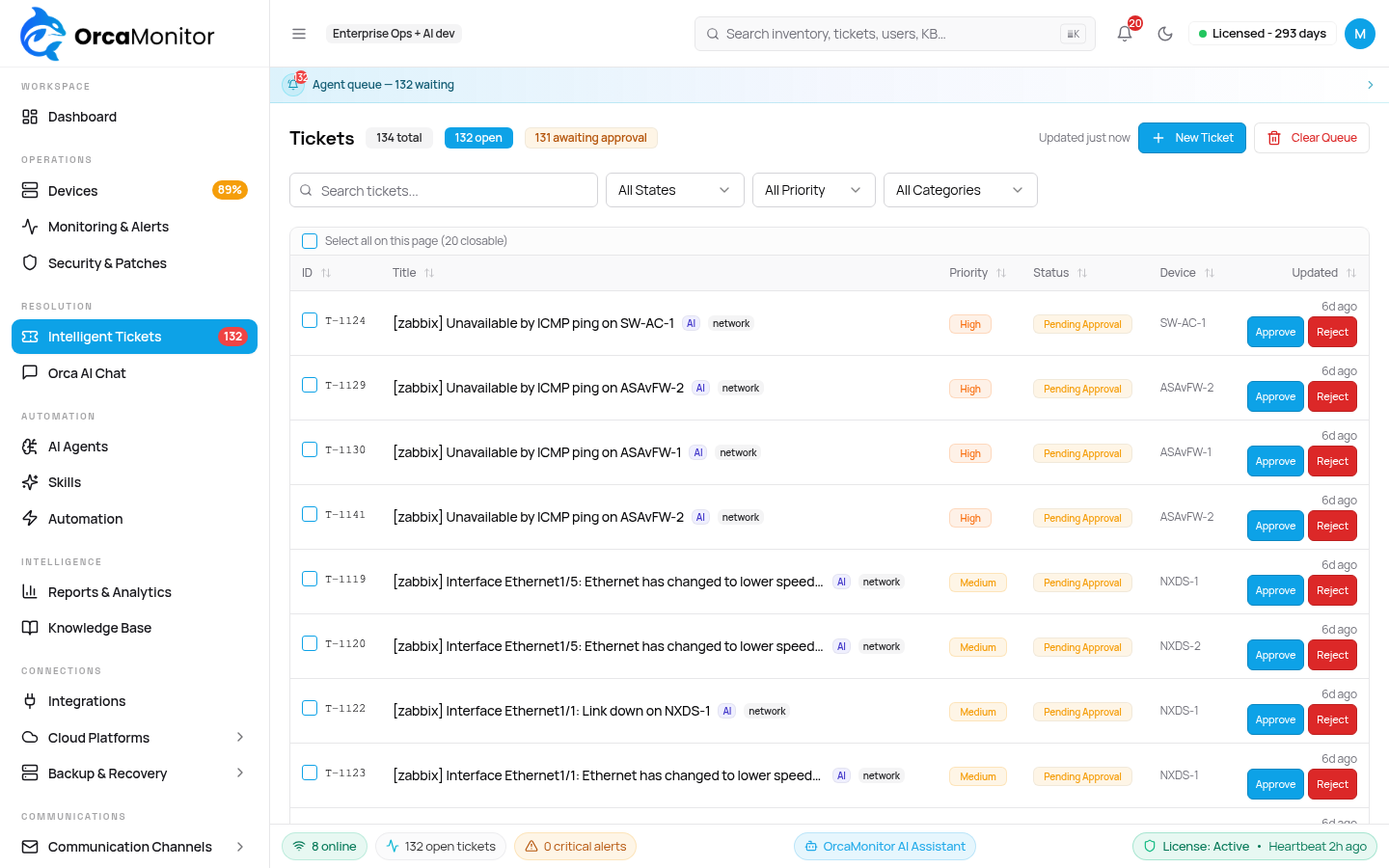
Opening a ticket shows one timeline rather than tabs to hunt through. Alerts, agent reasoning, tool calls, approvals and verification results are interleaved in the order they happened — which is the only order that makes the causal chain readable.
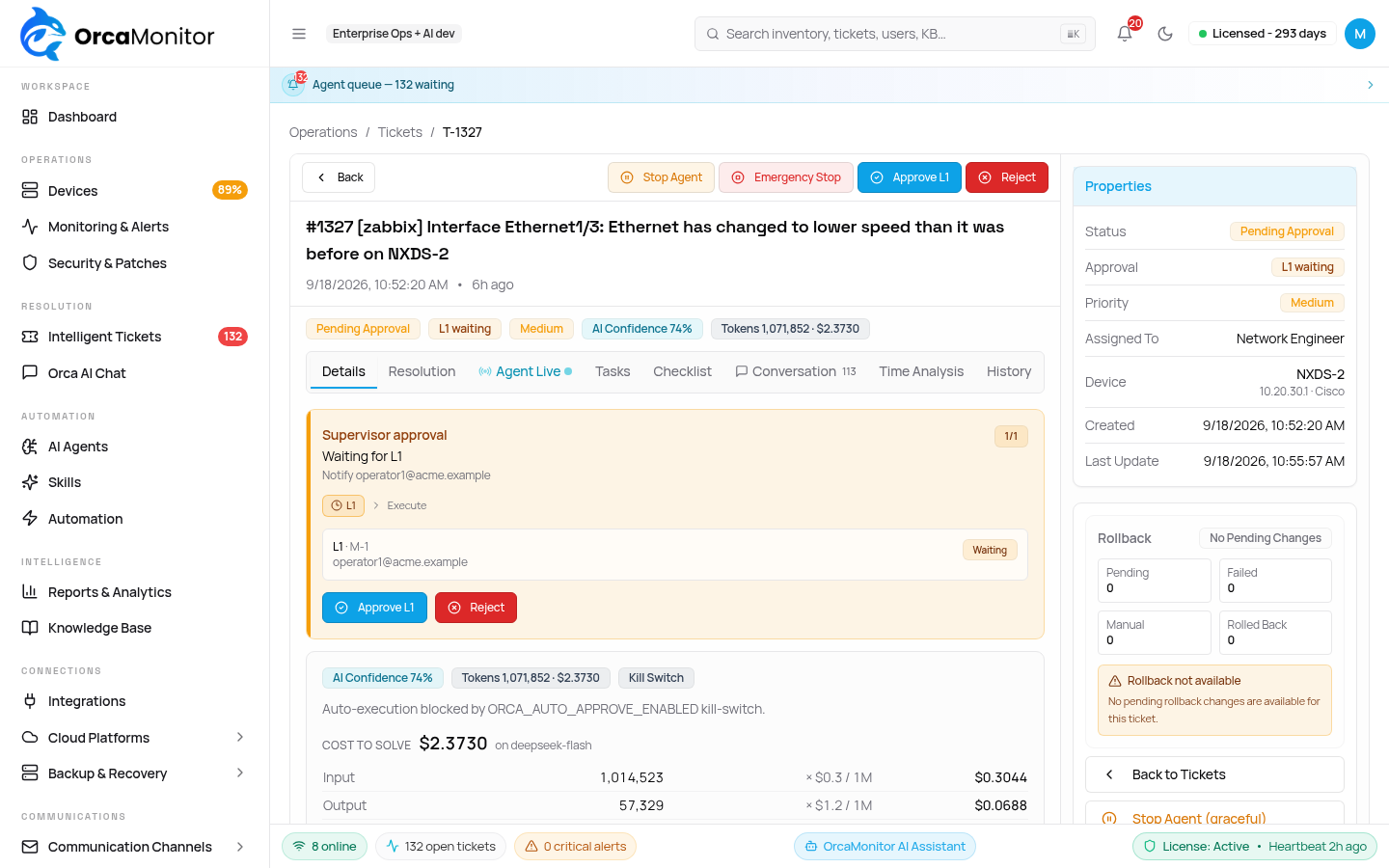
- Summary — what is broken, on which device, and the current root-cause hypothesis.
- Evidence — the alerts and diagnostics that led to the hypothesis, each still linked to its source.
- Plan — the exact commands the agent wants to run, in order, with the expected effect.
- Timeline — every event, tool call and state change with timestamps.
- Verification — the objective that was checked and whether it passed.
- Change log — the concrete modifications applied, which is also what makes a restore possible.
Approval
Approval is the product's central safety property. The agent can investigate freely, but it cannot change a device until a human approves the specific plan it proposed.
- 1Read the plan, not the summary
The summary is generated; the plan is the literal command list. The plan is what runs.
- 2Approve
Execution starts immediately and every command is recorded against the ticket.
- 3Reject
The run ends and the ticket returns to a human. There is no automatic re-proposal loop — the agent will not nag you with a second plan for the same attempt.
Rejecting does not "send it back for another go". If you want a different approach, say so in a comment and re-run analysis deliberately — the reasoning changes because you gave it new information, not because it retried on its own.
Verification and rollback
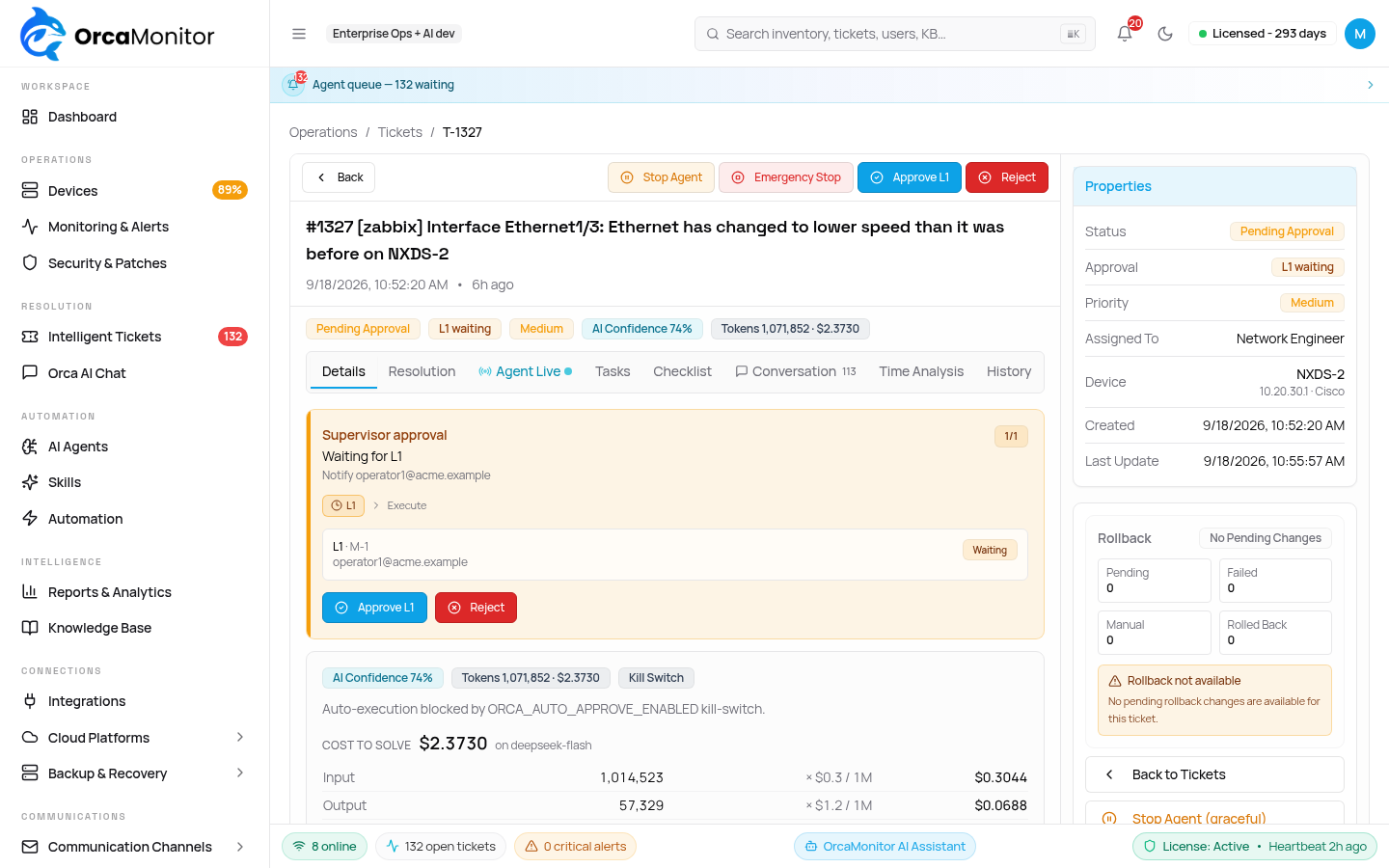
Applying a change successfully is not the same as fixing the problem. After execution the agent verifies the stated objective — the interface is up, the route is present, the service answers.
- Verification passes → the ticket resolves and the evidence is retained.
- Verification fails after a partial side effect → the ticket returns to Verifying fix and is flagged for a human.
- Failed verification with a recorded backup → that backup can be restored exactly once, then the ticket returns to a human.
The automatic restore is deliberately single-shot. A loop that keeps restoring is how a bad change becomes an outage of its own, so after one restore the decision goes back to a person.
Stopping a running agent
Any operator can stop an in-flight agent from the ticket. The request is cooperative: the running session is told to abort at its next safe point, and the ticket's final state depends on whether any change had already been applied.
POST /api/tickets/<ticket_id>/cancel-agent

# Outcome:
#   change log has rows  -> ticket returns to "Verifying fix" (a human decides)
#   nothing was applied  -> ticket ends "Failed" with "Cancelled by operator"
The emergency stop does the same thing and additionally revokes the worker tasks for that ticket. Use it when you want the run to stop now and not be resumed by a requeue.
Budgets, credits and pausing
Two independent budgets keep a runaway run from becoming a runaway bill: a step/execution budget for the agent, and an AI credit cap for the workspace.
| Limit reached | What happens |
|---|---|
| Agent execution budget | Run stops. Ticket ends in Verifying fix if anything was applied, otherwise Failed. |
| AI credit cap | Work is paused, not failed. The ticket parks and resumes automatically once credits are available. |
Parked tickets are re-queued automatically when the workspace has credits again, and parking deliberately does not consume the stale-ticket recovery attempts — so a long pause cannot cause a ticket to be abandoned.
Mail-driven tickets
Inbound mail can open tickets and replies thread onto them. A mail account is polled, each rule decides whether a message becomes a ticket, and outbound mail is sent through your configured SMTP relay with Reply-To set so a reply lands on the right thread.
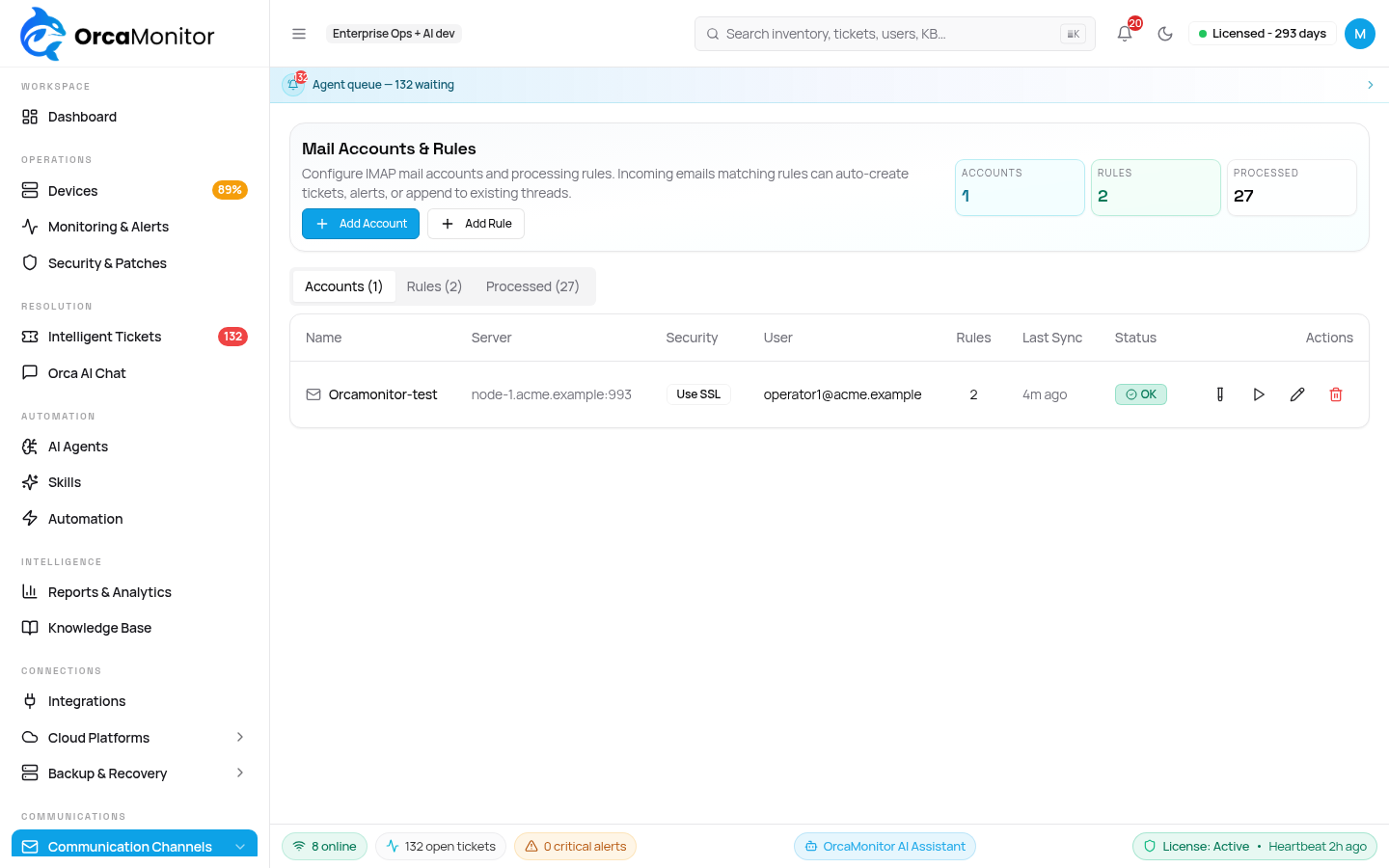
A rule with no matching criteria accepts every message in the mailbox, which turns a shared inbox into a ticket generator. Match on the subject or body, and remember that rules are evaluated in order — the first match wins.
Playbooks
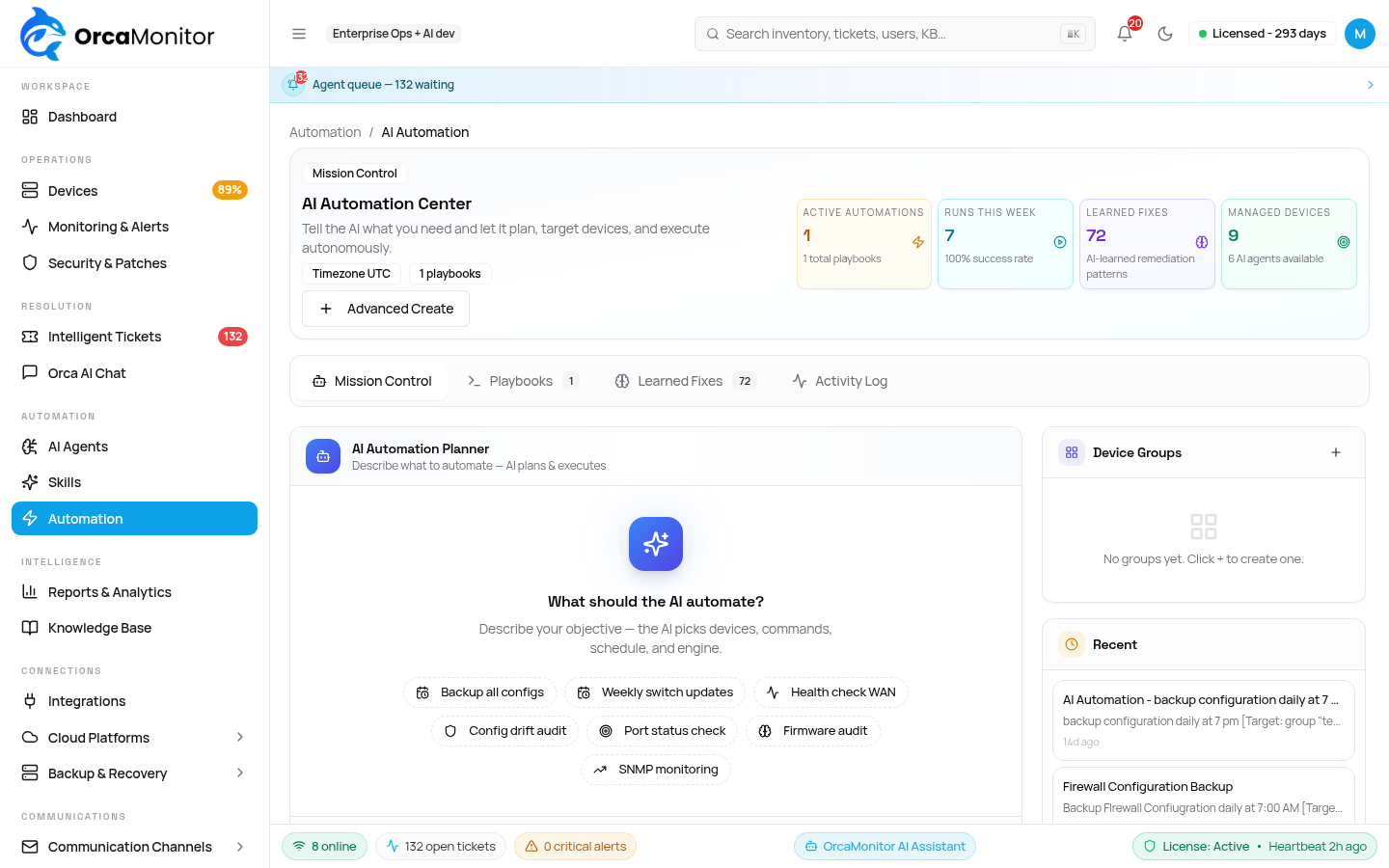
A playbook is a saved remediation for a recurring incident. Playbooks still pass through the same approval gate as an agent-proposed plan; what they save is the diagnosis time, not the decision.
OrcaMonitor documentation v1.0.0 · Report a problem
See every module, pricing tier, and deployment option on the OrcaMonitor overview.