
Documentation menu
Deployment & licensing
Cloud, on-prem or hybrid — and how updates reach you
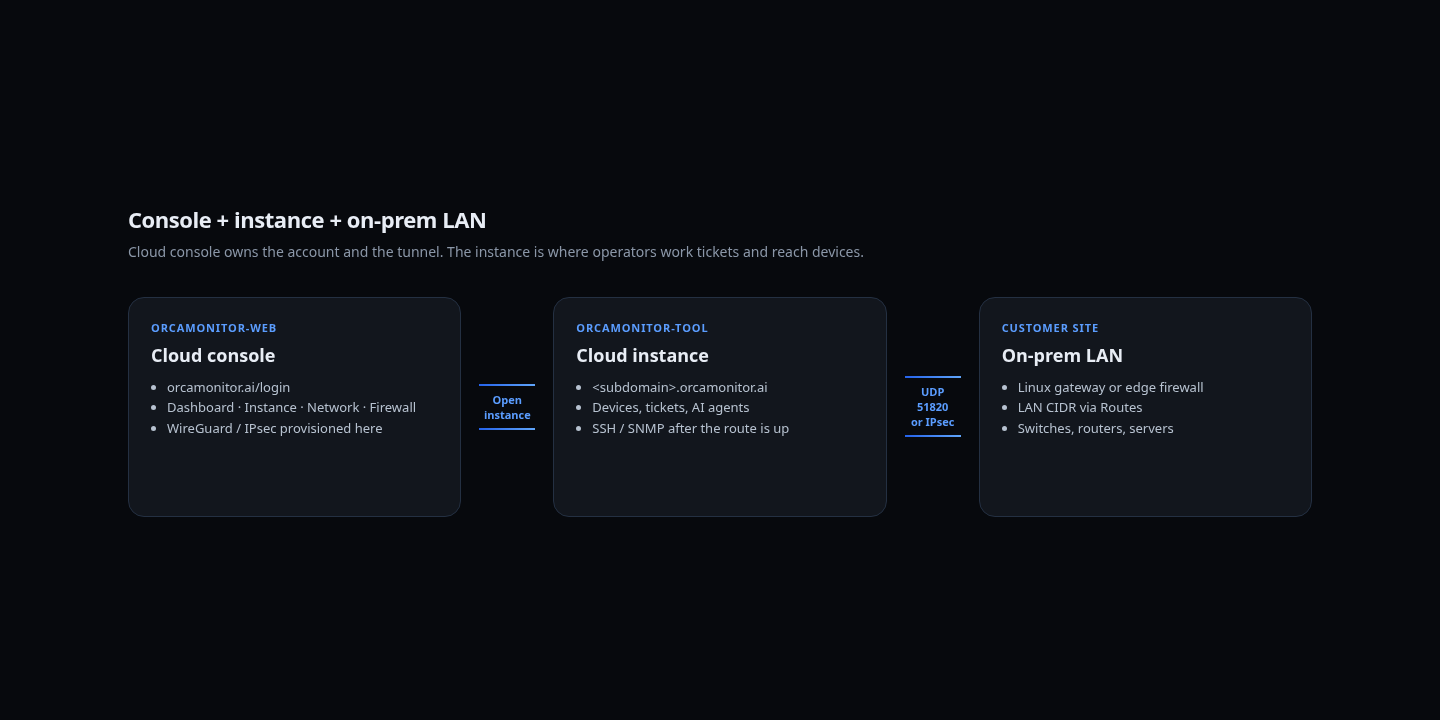
There are three moving parts and it is worth being precise about them before anything else, because most "I cannot find the feature" reports are really "I am looking at the wrong layer".
| Layer | What it is | Who runs it |
|---|---|---|
| Console | Account, billing, deployments and connectivity for your organization | OrcaMonitor (orcamonitor.ai) |
| Instance | Your OrcaMonitor workspace — devices, alerts, tickets, agents | Managed by us, or by you on-prem |
| Agent | The service on a host that applies updates and reports health | On the host running the instance |
Managed cloud
The default. Sign up, and a workspace is provisioned for you on its own subdomain with its own database, credentials and storage. You never see the infrastructure, and there is nothing to patch.
- 1Sign in to the console
This is the account and deployment view, not the operations console. Devices are not visible here.
- 2Wait for Ready
The instance is provisioned and reports Ready with its subdomain once it is serving.
- 3Open the instance
A second sign-in on the instance subdomain. This is the operations console described everywhere else in these docs.
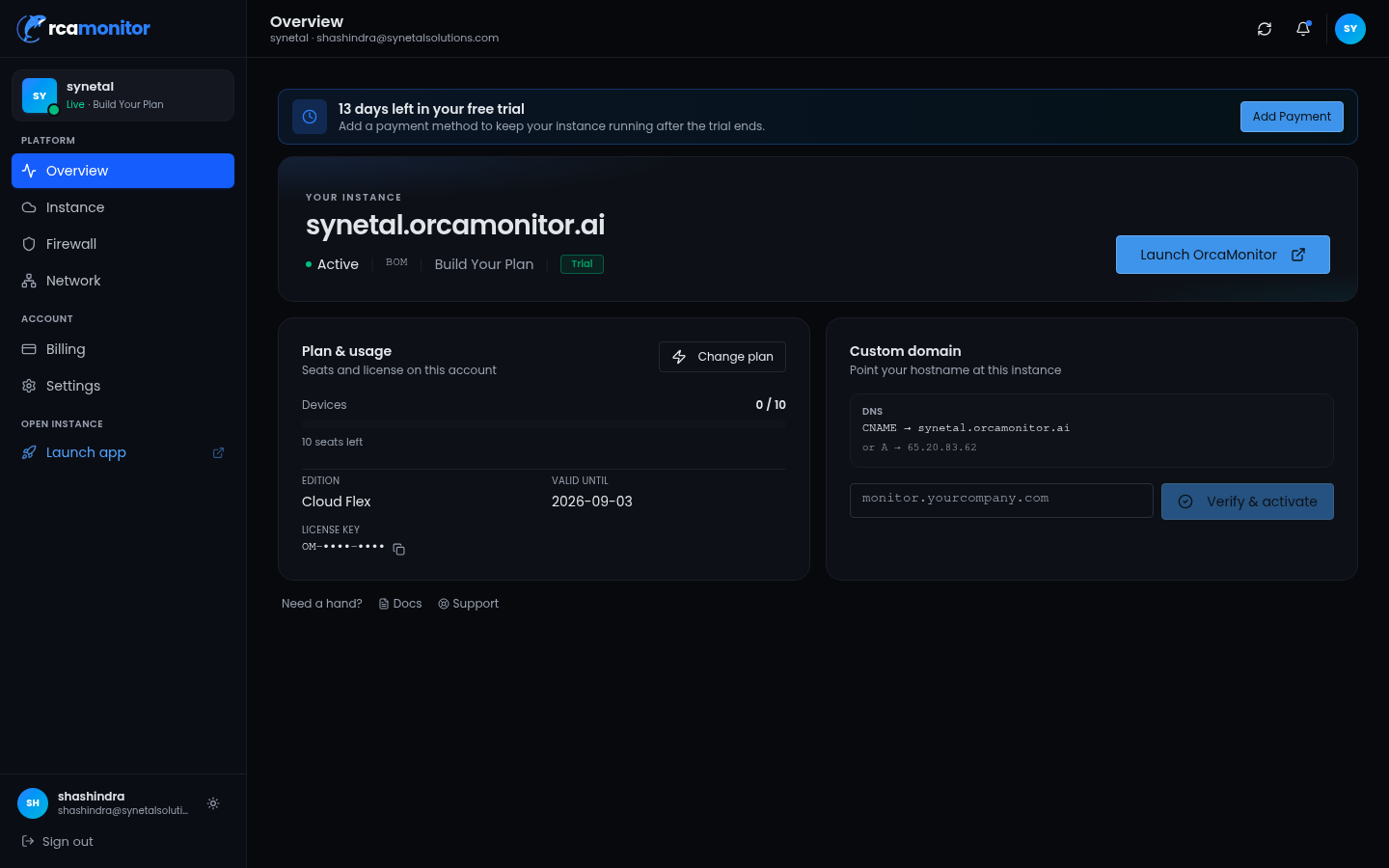
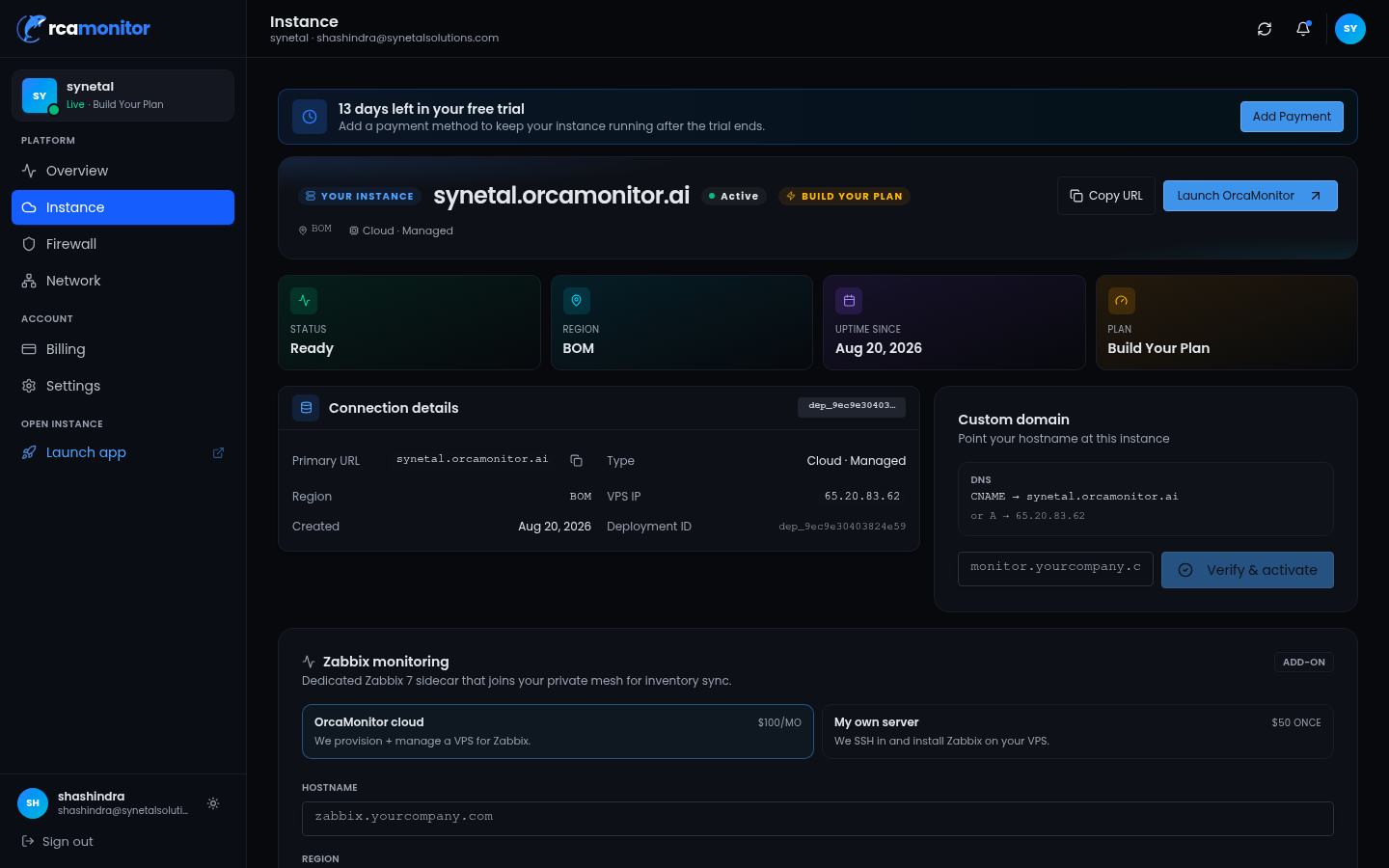
The console and the instance are separate trust boundaries with separate accounts and sessions. Being signed into the console does not sign you into an instance, and losing access to one does not affect the other.
On-premises
Runs the full stack inside your own infrastructure. The installer provisions the application, database, cache, secret store and the container runtime, and can be driven unattended for scripted rollouts.
- Installer handles the service stack plus the host prerequisites, and is idempotent on re-run.
- TLS is terminated by the bundled reverse proxy; bring your own certificate or issue one through it.
- Data stays inside your network. Outbound access is needed only for licensing and, if you enable it, AI traffic.
- Upgrades are applied through the same flow as managed instances — the agent runs them.
Hybrid
The instance runs on-prem while the console keeps managing licensing, updates and connectivity. This is the common choice for teams who need data residency but not the operational burden of owning the update path.
Licensing
A license carries the edition, a device limit and an expiry. The instance verifies it and reports status locally, so you can see the state without reaching out to a vendor portal.
| Field | Meaning |
|---|---|
| Edition | Which capability set is unlocked |
| Device limit | How many devices the instance will manage, shown as used/limit |
| Expiry | Days remaining, surfaced on the dashboard as it approaches |
An expired or over-limit license restricts management rather than destroying access — you keep visibility of what is already there, which is the behaviour you want mid-renewal.
Updates
Updates are pulled and applied by the instance's agent rather than by a remote shell, so the mechanism is the same whether the instance is managed or self-hosted, and it is observable in one place.
- 1An update is queued
From the deployment view, or by the agent's own update policy.
- 2The agent updates itself first
The agent is brought to the current version before it applies anything, so an older agent cannot fail to understand a newer release's steps.
- 3Images are pulled and space is reclaimed
Unused images are pruned before and after the update. This exists because a full disk is a far more common update failure than a bad release.
- 4Services restart in dependency order
The database and pooler come up before the application, and health is checked at each step rather than assumed.
If an update fails with a container reported unhealthy, check free space before reading the application logs. A full disk presents as a service that will not start, which looks like a release problem and is not.

Backups
- Database backups run on a schedule and can be taken on demand.
- Workspace configuration can be mirrored to a git repository for reviewable history.
- Device configuration backups are separate — those are per-device, and they are what enable a rollback during remediation.
OrcaMonitor documentation v1.0.0 · Report a problem
See every module, pricing tier, and deployment option on the OrcaMonitor overview.